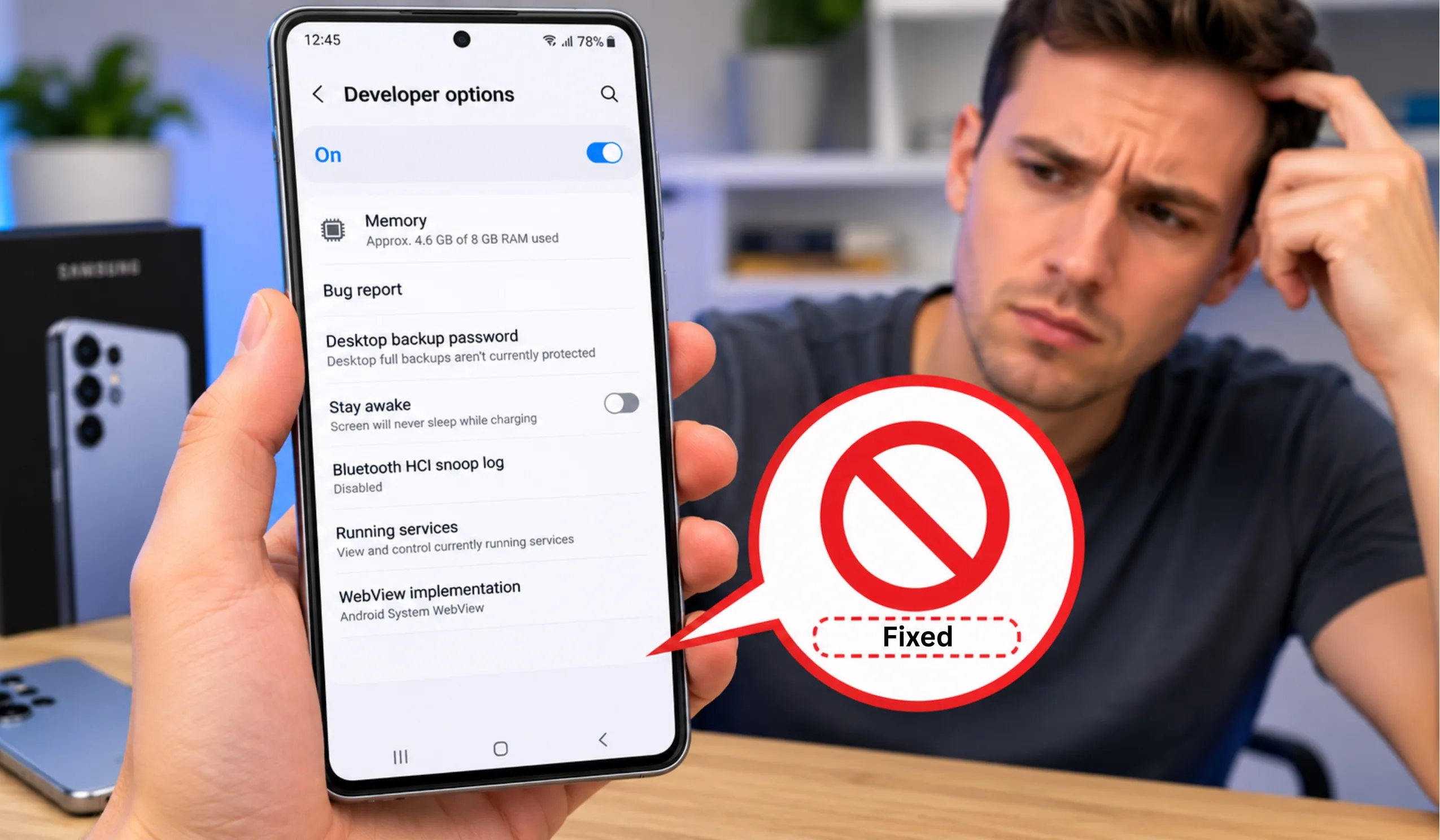
You want to root your Samsung Galaxy. Maybe install a custom ROM. Or flash a custom recovery like TWRP. You know the drill — enable Developer Options, find OEM Unlocking, flip the switch. But when you get there, the toggle is missing.
Not grayed out. Not disabled. Completely gone.
This happens for several reasons. Some are simple settings you can change in 30 seconds. Others are hard limits set by Samsung or your carrier that you can’t bypass without special tools. Let’s go through every possible cause and the exact fix for each one.
TL;DR: Why OEM Unlock Is Missing
Why the OEM Unlock Toggle Disappears
What Is OEM Unlocking, Anyway?
OEM Unlocking is a security feature built into Android. When you toggle it on, you’re telling your phone that you want to unlock the bootloader.
The bootloader is the first piece of software that runs when you turn on your phone. It loads the operating system. By default, Samsung locks the bootloader to prevent unauthorized software from running. This protects against malware and keeps your device secure.
But if you want to root your phone, install a custom ROM, or flash a custom recovery, you need an unlocked bootloader. That’s where OEM Unlocking comes in. Without this toggle, you can’t do any of those things.
Samsung hides this toggle by default for good reason. An unlocked bootloader makes your device less secure. It also trips Samsung Knox, which voids your warranty and permanently disables Samsung Pay and Secure Folder.
All 7 Reasons Why OEM Unlock Is Not Showing
Reason 1: The 7-Day Waiting Period (Most Common)
On newer Samsung devices running One UI, Samsung introduced a 7-day activation period before the OEM Unlock toggle appears. This is a security measure to deter thieves from quickly unlocking and reselling stolen phones.
During these 7 days, your phone must:
- Stay powered on and connected to the internet
- Have a Google account signed in
- Have a Samsung account signed in (on some models)
The timer starts from the moment you first set up the device. If you factory reset the phone, the timer resets too. This is the #1 reason people can’t find the OEM Unlock toggle.
Reason 2: You Have a US Carrier Model (Snapdragon)
This is the most frustrating reason because there’s no fix. Samsung sells different versions of the same phone depending on the region and carrier.
US carrier models use Qualcomm Snapdragon processors with permanently locked bootloaders. The OEM Unlock toggle is physically removed from the software. No amount of waiting, settings changes, or hacks will bring it back.
How to tell if you have a locked model:
- Check your model number in Settings > About Phone
- US carrier models end in
UorU1(e.g., SM-S901U, SM-G998U1) - International models end in
BorF(e.g., SM-G998B) and CAN be unlocked
If your model ends in U or U1 and you’re on a US carrier, the OEM Unlock option will never appear. This is a carrier requirement, not a Samsung choice.
Some paid services claim to unlock US carrier Samsung bootloaders using “userdata files.” These are scams or exploits that can brick your device. There is no legitimate way to unlock a US carrier Samsung bootloader.
Reason 3: Samsung Knox Has Been Tripped
Samsung Knox is a hardware-based security system built into every Galaxy device. When Knox is triggered — usually by rooting, flashing unofficial firmware, or attempting bootloader unlock — it permanently disables the OEM Unlock option.
Here’s the thing about Knox: once tripped, it cannot be reset. It’s a physical fuse in the processor that burns when triggered. Even if you flash stock firmware, Knox stays tripped. The OEM Unlock toggle will never return.
You can check Knox status by:
- Downloading Phone INFO SAMSUNG from the Play Store
- Checking the “Knox Warranty Void” status
- If it says
0x1, Knox is tripped and OEM Unlock is gone forever
Reason 4: Developer Options Isn’t Enabled Yet
This sounds obvious, but it’s easy to miss. The OEM Unlock toggle lives inside Developer Options. If you haven’t enabled Developer Options yet, you won’t see it at all.
To enable Developer Options:
- Open Settings
- Go to About Phone > Software Information
- Tap Build Number 7 times quickly
- Enter your PIN when prompted
- You’ll see “Developer mode has been turned on”
Now go back to Settings and look for Developer Options near the bottom. The OEM Unlock toggle should be in there — unless one of the other reasons applies.
Reason 5: Auto Update System Is Enabled
On some Samsung devices, having Auto Update System turned on in Developer Options can hide the OEM Unlock toggle. Samsung does this to prevent users from unlocking the bootloader right before a system update.
The fix is simple:
- Go to Settings > Developer Options
- Find Auto Update System
- Turn it OFF
- Restart your phone
After the reboot, check if OEM Unlock has appeared. This fix works on Galaxy S8, S9, Note 8, and newer models.
Reason 6: Automatic Date and Time Is On
Here’s a weird one that actually works. Samsung’s 7-day timer checks the system date. If you manually change the date to make the phone think 7 days have passed, the OEM Unlock toggle can appear instantly.
This is a known workaround for the 7-day wait:
- Go to Settings > General Management > Date and Time
- Turn OFF Automatic Date and Time
- Manually set the date to 7 days in the future
- Go back to Developer Options and check for OEM Unlock
- If it appears, toggle it ON, then set the date back to automatic
This trick has been confirmed working on Galaxy S8, S9, S10, Note 8, Note 9, and S20 series. It may not work on newer One UI 5+ devices.
Reason 7: Your Phone Is Too New (One UI 5.1+ Restrictions)
Samsung has been tightening bootloader unlock restrictions with each One UI update. On devices running One UI 5.1 or newer (Galaxy S23 series and later), Samsung removed the OEM Unlock toggle entirely for some regions.
This isn’t a bug. It’s a deliberate policy change. Samsung wants to make bootloader unlocking harder to improve device security and reduce warranty claims.
On these newer devices, even international Exynos models may lack the OEM Unlock option. Your only option is to wait and see if Samsung changes the policy, or buy an older device that supports unlocking.
Step-by-Step Fixes: How to Get OEM Unlock Back
Now that you know why the toggle is missing, here’s how to fix it. Work through these steps in order. Stop when the toggle appears.
U or U1 (e.g., SM-S901U), you have a US carrier model.0x1, Knox is tripped and OEM Unlock is permanently disabled.Quick Reference: Can Your Samsung Be Unlocked?
| Model Type | Example Model | OEM Unlock Available? | Can Be Rooted? |
|---|---|---|---|
| International Exynos | SM-G998B (S21 Ultra) | Yes | Yes |
| US Carrier (Snapdragon) | SM-S901U (S22) | No | No |
| US Unlocked (Snapdragon) | SM-S901U1 (S22) | No | No |
| Canadian (Snapdragon) | SM-G998W (S21 Ultra) | Sometimes | Sometimes |
| Chinese (Snapdragon) | SM-G9980 (S21 Ultra) | No | No |
| Korean (Exynos) | SM-G998N (S21 Ultra) | Yes | Yes |
| Knox Tripped (Any Model) | Any | No | No |
What Happens After You Enable OEM Unlock?
Once you toggle OEM Unlock ON, your phone will warn you that this action cannot be undone. Here’s what actually happens:
- Knox gets tripped permanently— Samsung Pay, Secure Folder, and some banking apps will stop working forever
- Your warranty is voided— Samsung won’t honor warranty claims on bootloader-unlocked devices
- Factory reset protection is weakened— A thief could unlock and reflash your device
- Custom ROMs become possible— You can install LineageOS, custom recoveries, and rooted firmware
Think carefully before enabling OEM Unlock. For most users, the risks outweigh the benefits. If you just want to remove bloatware or customize your home screen, you don’t need an unlocked bootloader. Use ADB commands or a debloater app instead.
If you only want to remove Samsung bloatware without unlocking the bootloader, use the Universal Android Debloater tool. It works through ADB and doesn’t require root or an unlocked bootloader. Your warranty stays intact.
The Bottom Line
The missing OEM Unlock toggle is one of the most common frustrations for Samsung users who want to customize their phones. In most cases, the fix is simple — wait 7 days, turn off auto updates, or change the system date.
But for a growing number of Samsung devices, especially US carrier models and newer phones, the toggle is gone for good. Samsung has been tightening bootloader security with every generation, and the days of easily unlocking Galaxy devices are fading.
Before you go down this road, ask yourself: Do you really need an unlocked bootloader? For removing bloatware, customizing the interface, or even running advanced apps, you probably don’t. ADB commands and debloater tools can handle most tasks without voiding your warranty or tripping Knox.
If you’re set on rooting or installing a custom ROM, make sure you have an unlockable model, back up your data, and understand that some things can’t be undone. Knox trips are permanent. Warranty voids are permanent. Choose wisely.
Frequently Asked Questions
7 days from the moment you first set up the device. The phone must stay powered on and connected to the internet during this time. A Google account and sometimes a Samsung account must be signed in. If you factory reset the phone, the timer resets and you wait another 7 days.
No. US carrier models with Snapdragon processors (model numbers ending in U or U1) have permanently locked bootloaders. This is a carrier requirement, not a Samsung bug. No software tool, hack, or paid service can legitimately unlock these devices. Any service claiming otherwise is a scam.
No — it does the opposite. A factory reset resets the 7-day activation timer. Even if you previously had OEM Unlock enabled, you’ll need to wait another 7 days after resetting. The toggle will be hidden until the timer completes again.
Knox is Samsung’s hardware-based security platform. When triggered (“tripped”), it permanently disables OEM Unlock and voids warranty features. Knox trips when you unlock the bootloader, root the device, or flash unofficial firmware. The trip is irreversible — it’s a physical fuse in the processor that burns once and cannot be reset, even by flashing stock firmware.
Mostly safe, but with caveats. Changing the system date to bypass the 7-day wait won’t damage your phone. However, it can cause issues with app certificates, scheduled notifications, and some banking apps that check the date for security. After enabling OEM Unlock, set the date back to automatic immediately. Don’t leave the wrong date active for long.
Enabling the toggle itself does not delete data. However, actually unlocking the bootloader (which happens after you enable OEM Unlock and reboot into download mode) will factory reset your phone. Samsung forces a data wipe when unlocking the bootloader as a security measure. Back up everything before proceeding.
Technically yes, but it doesn’t matter. You can relock the bootloader by flashing stock firmware and using specific commands. However, Knox stays tripped permanently. Samsung Pay, Secure Folder, and warranty coverage won’t return. The physical Knox fuse cannot be reset. Relocking only prevents further custom flashing.
If you’ve tried everything — waited 7 days, disabled auto updates, changed the date, checked your model number, and verified Knox isn’t tripped — then your device likely falls into one of the “permanently locked” categories. Either it’s a US carrier model, a Chinese variant, or a newer device with One UI 5.1+ restrictions. In these cases, bootloader unlocking is simply not possible. Consider whether you actually need an unlocked bootloader, or explore ADB-based alternatives for your goal.