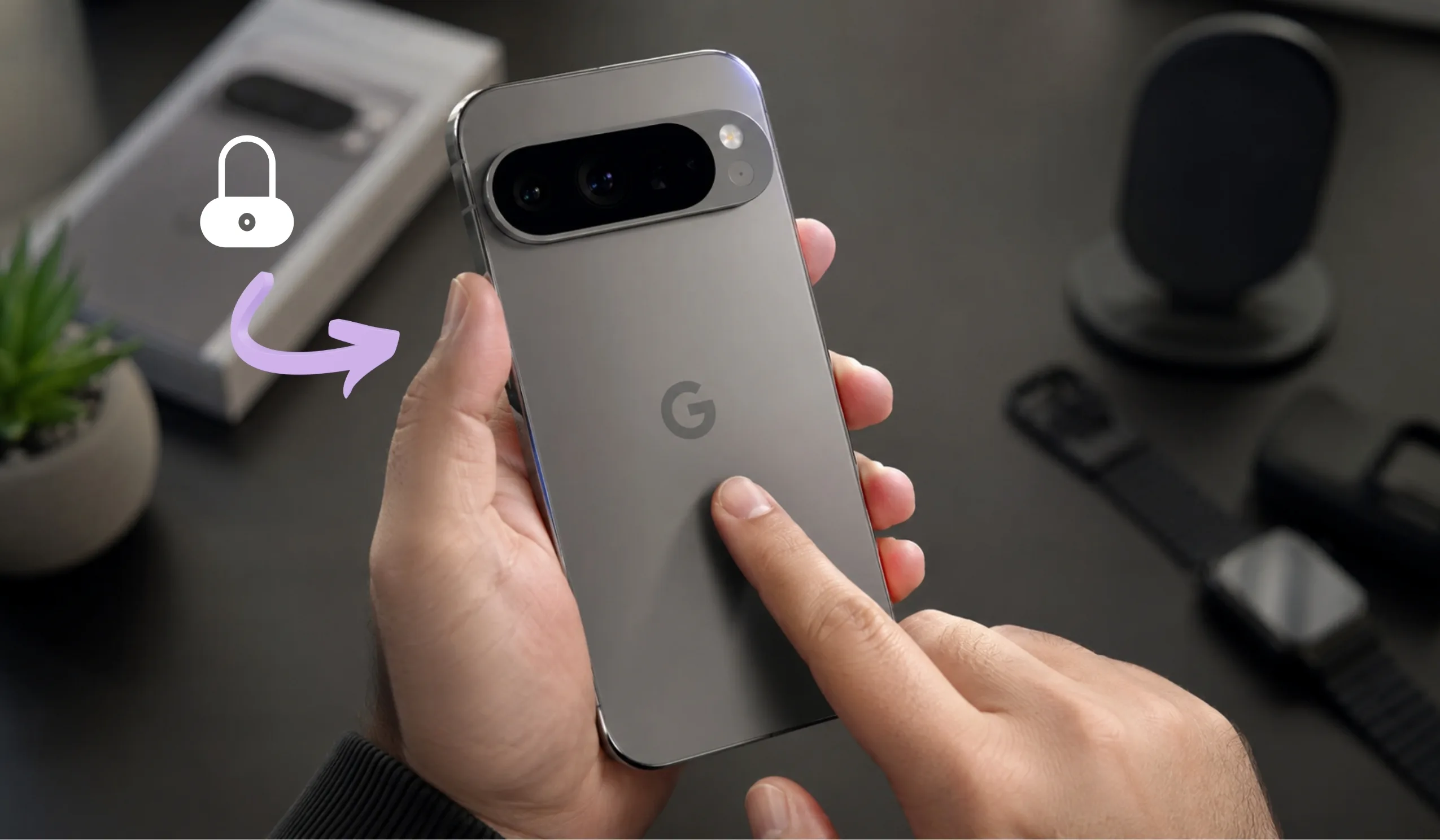
Carrier locking keeps your phone trapped on one network. It stops you from switching to cheaper plans, using local SIM cards abroad, or selling your device at full value. If you own a Google Pixel 11, Pixel 11 Pro, Pixel 11 Pro XL, or Pixel 11 Pro Fold, you can remove these restrictions. You do not need to factory reset your phone or lose your photos, apps, and contacts.
This guide walks you through every safe method to unlock your Pixel 11 series device. Each step is written in plain English. No technical jargon. No guesswork.
Key Takeaways
What Does “Carrier Locked” Actually Mean?
A carrier-locked phone only works with one specific network. If you bought your Pixel 11 from Verizon, AT&T, or T-Mobile, they may have locked it to their service. This is a software restriction, not a hardware problem. It lives inside your phone’s settings and talks to the SIM card.
When you insert a SIM card from another carrier, the locked phone shows an error. It might say “SIM not supported” or ask for a network unlock code. This happens because the carrier wants to keep you on their plan until you meet their unlock rules.
The good news? Google Pixel phones are among the easiest Android devices to unlock. The process is simpler than Samsung or Motorola phones. You just need to pick the right method for your situation.
Why Unlock Your Pixel 11?
There are five solid reasons to unlock your Pixel 11, 11 Pro, 11 Pro XL, or 11 Pro Fold:
1. Freedom to switch carriers. You can move to any network with better rates or coverage. No need to buy a new phone.
2. Travel without roaming fees. Pop in a local SIM card in Europe, Asia, or South America. Pay local prices instead of $10-per-day roaming charges.
3. Higher resale value. Unlocked phones sell for 20% to 40% more than locked ones. Buyers want flexibility.
4. No contract chains. You own the phone. You should control which network it uses.
5. Faster software updates. Unlocked Pixel devices often receive Android updates directly from Google before carrier-branded models.
Method 1: The Official Carrier Unlock (Free, No Data Loss)
This is the safest and most recommended method. It costs nothing and keeps all your data intact. Every major carrier in the United States must unlock your phone if you meet their rules.
Step 1: Check If You Are Eligible
Carriers will not unlock a phone that is still under contract or financed. Here is what they usually require:
- The device must be fully paid off.
- Your account must be in good standing. No unpaid bills.
- The phone must have been active on their network for at least 40 to 60 days.
- For prepaid carriers, the device may need 6 to 12 months of service.
Verizon generally unlocks Pixel phones automatically after 60 days. AT&T requires you to submit a request through their unlock portal. T-Mobile has a device unlock app you can download from the Play Store.
Step 2: Find Your IMEI Number
Your IMEI is like your phone’s fingerprint. You need it to request an unlock.
Open the Phone app on your Pixel 11. Dial *#06#. A popup will show your 15-digit IMEI number. Write it down. You can also find it under Settings > About Phone > IMEI.
Step 3: Contact Your Carrier
Call your carrier’s customer support line. Tell them you want to network unlock your Google Pixel 11. They will ask for:
- Your IMEI number
- Your account information
- The phone number tied to the device
Some carriers handle this through an online form instead of a phone call. AT&T has a dedicated Device Unlock website. T-Mobile users can use the T-Mobile Device Unlock app on the phone itself.
Step 4: Wait for Confirmation
Most carriers process unlock requests within 24 to 72 hours. You will receive an email or text message when it is done. You do not need to do anything to your phone. The unlock is pushed over the air.
Step 5: Restart Your Phone
Power off your Pixel 11 completely. Turn it back on. The carrier lock is now gone. All your apps, photos, and settings remain exactly where they were.
Method 2: Unlock Through Your Pixel 11 Settings (Newer Models)
Some Pixel models allow you to unlock the network directly from the Settings menu. This works on newer Android versions and does not erase anything.
Step 1: Open Settings
On your Pixel 11, swipe down from the top of the screen. Tap the gear icon to open Settings.
Step 2: Go to Network Settings
Scroll down and tap Network & Internet. Then tap Mobile Network or SIMs.
Step 3: Look for the Carrier Unlock Option
Some carriers include a “Carrier Lock” or “Network Unlock” toggle inside this menu. If you see it, tap it. The phone may ask you to enter a code or confirm your choice.
Note: This option only appears if your carrier has already approved the unlock on their end. It is basically a shortcut for Method 1.
Step 4: Confirm and Reboot
Tap the unlock button. Wait for the confirmation message. Restart your Pixel 11. Your device is now free to use any SIM card.
Method 3: Use a Paid Unlock Service (Fast, No Data Loss)
What if your carrier says you are not eligible? Maybe you bought the phone secondhand. Maybe you still owe one payment. Maybe you are traveling tomorrow and cannot wait 72 hours.
Paid IMEI unlock services can help. These companies have direct agreements with carrier databases. They whitelist your IMEI number as “unlocked” remotely.
How It Works
- You visit a trusted unlock service website.
- You enter your Pixel 11 model, carrier, and IMEI number.
- You pay a fee (usually $20 to $60 depending on the carrier).
- The service processes your unlock remotely.
- You receive an email confirmation within a few hours to a few days.
- You restart your phone. It is unlocked. No data is touched.
Tips for Choosing a Service
- Look for services with a money-back guarantee.
- Read recent reviews from real users.
- Avoid services that ask you to install sketchy software on your phone.
- The best services only need your IMEI and email address. Nothing else.
Warning: Never give your Google account password to an unlock service. They do not need it.
Method 4: The ADB AppOps Bypass (No Root, No Data Loss)
This is the most popular method for Pixel devices. It works on the Pixel 9, Pixel 8, and Pixel 5. It is expected to work on the Pixel 11 series because Google keeps the same Device Setup app across generations. You do not need to root your phone. You do not need to unlock the bootloader. Your data stays exactly where it is.
What You Need
- A Windows, Mac, or Linux computer.
- A USB cable to connect your Pixel 11.
- ADB (Android Debug Bridge) installed on your computer.
- USB Debugging turned on in your Pixel 11 settings.
Step 1: Enable Developer Options
Open your Pixel 11. Go to Settings. Scroll down to About Phone. Find the Build Number. Tap it seven times fast. A message pops up: “You are now a developer.” That is it.
Step 2: Turn On USB Debugging
Go back to Settings. Tap System. Tap Developer Options. Find the switch for USB Debugging and turn it on. Plug your phone into your computer. A prompt appears on your Pixel 11 screen. Tap Allow.
Step 3: Set Up Your Phone Offline
This part is critical. Do not skip it.
Remove any SIM card from your Pixel 11. Turn off Wi-Fi and mobile data. Complete the phone setup without the internet if you have not already. Do not add a Google account yet if you can avoid it. The goal is to stop the Device Setup app from talking to Google’s servers before you block it.
Step 4: Restrict Device Setup Manually
Open Settings on your Pixel 11. Tap Apps. Tap See All Apps. Tap the three dots in the corner. Choose Show System. Scroll down and find Device Setup. Tap it.
Inside the app info screen, look for Mobile Data and Wi-Fi. Turn off Background Data. Then look for App Battery Usage. Set it to Restricted. This slows the app down. It is not enough alone, but it helps.
Step 5: Run the ADB Commands
On your computer, open a terminal or command prompt. Make sure ADB recognizes your phone by typing:
adb devices
You should see your Pixel 11 listed. Now type each command below. Hit Enter after each one. Copy and paste them one at a time.
adb shell cmd appops set com.google.android.apps.work.oobconfig WAKE_LOCK deny
adb shell cmd appops set com.google.android.apps.work.oobconfig RUN_IN_BACKGROUND deny
adb shell cmd appops set com.google.android.apps.work.oobconfig RUN_ANY_IN_BACKGROUND deny
adb shell cmd appops set com.google.android.apps.work.oobconfig START_FOREGROUND deny
adb shell cmd appops set com.google.android.apps.work.oobconfig ACCESS_RESTRICTED_SETTINGS deny
These commands tell Android to deny permissions to the Device Setup app. It cannot wake up. It cannot run in the background. It cannot start itself. It becomes a harmless icon sitting in the dark.
Step 6: Insert Your New SIM
Now you can safely insert a SIM card from any carrier. Turn on mobile data. Make a test call. Send a text. If everything works, your Pixel 11 is unlocked. Your apps, photos, and files are still there. Nothing was erased.
How to Check If Your Pixel 11 Is Already Unlocked
Maybe you bought your phone used. Maybe you are not sure if the previous owner unlocked it. Here is how to check in 30 seconds.
Method A: The SIM Card Test
- Turn off your Pixel 11.
- Remove the current SIM card.
- Insert a SIM card from a different carrier. Ask a friend if you can borrow theirs for a minute.
- Turn the phone back on.
- If you see signal bars and can make a call, the phone is unlocked.
- If you see a “SIM network unlock PIN” message or “Invalid SIM,” it is still locked.
Method B: Check in Settings
- Open Settings.
- Go to About Phone.
- Look for SIM Status or Network.
- Some Pixels show “Network Unlocked” right there.
What About the Pixel 11 Pro Fold?
Foldable phones use the same carrier locking system as regular phones. The Pixel 11 Pro Fold is no different. It runs the same Android software and uses the same SIM tray or eSIM technology.
All four methods above apply to the Pixel 11 Pro Fold. The only extra tip is this: make sure the unlock service you choose specifically lists “Pixel Fold” or “Pixel Pro Fold” as a supported model. Some older databases forget to include foldable devices, even though the unlock process is identical.
Troubleshooting Common Problems
Problem: My carrier says I am not eligible, but I paid off the phone.
Solution: Double-check that your account has no outstanding balance. Even a $10 late fee can block the unlock. Call again and ask for a supervisor.
Problem: I unlocked the phone, but it still says “Invalid SIM.”
Solution: Restart the phone twice. Some Pixels need a full power cycle to refresh the network settings. If that fails, go to Settings > System > Reset Options > Reset Network Settings. This does not erase your photos or apps.
Problem: The T-Mobile Device Unlock app says “Server not responding.”
Solution: Make sure you are connected to Wi-Fi or mobile data. The app needs internet to talk to T-Mobile’s servers. Try again in a few hours if the server is down.
Problem: I bought my Pixel 11 from a third-party seller. Can I still unlock it?
Solution: Yes, but the original owner must request the unlock from their carrier first. If they refuse, use a paid IMEI unlock service. Make sure you have the IMEI number before you pay.
The Bottom Line
Unlocking your Google Pixel 11, Pixel 11 Pro, Pixel 11 Pro XL, or Pixel 11 Pro Fold is one of the smartest moves you can make. It gives you full ownership of a device you already paid for. You do not need to be a tech expert. You do not need to lose your data. You just need to follow the right steps.
Start with the official carrier unlock. It is free, safe, and keeps everything on your phone exactly where it is. If that fails, a paid IMEI service is your next best bet. Avoid the ADB bypass unless you have already backed up your files and understand the risks.
Your Pixel 11 is a powerful, expensive device. Do not let a carrier lock chain it down. Take 10 minutes today to start the unlock process. Your future self will thank you when you switch to a cheaper plan or land in a foreign airport with a local SIM card ready to go.
Frequently Asked Questions
The easiest way is to ask the original carrier. Most carriers unlock phones for free after 60 days or once the device is paid off. They send an unlock signal over the air, and the phone accepts any SIM card.
If the carrier refuses, users can use the ADB appops method. This blocks the Device Setup app from contacting Google’s servers. Once that app is silenced, the carrier lock simply stops working. It takes about ten minutes and requires a computer with ADB installed.
Yes. Unlocking a carrier-locked Android does not require a factory reset. The ADB method only changes app permissions. It never touches photos, messages, contacts, or installed apps.
Users simply enable Developer Options and USB Debugging, then run a few commands. The phone stays exactly as it was. No data is erased, and no settings are lost.
It depends on where the phone was bought. Pixels purchased directly from the Google Store are usually factory unlocked. They work with any carrier right out of the box.
Phones bought from carriers like Verizon, AT&T, or T-Mobile are often locked to that network. Users can check by inserting a SIM card from a different carrier. If the phone rejects it, the device is still locked.
The safest path is the ADB permission restriction method. First, remove the SIM card and disable Wi-Fi and mobile data. Then enable Developer Options and USB Debugging on the Pixel.
Next, connect the phone to a computer and run ADB commands to deny background and wake permissions to the Device Setup app. After that, insert a new SIM card. The phone is unlocked, and every file stays right where it belongs.
Yes. Any carrier-locked device can be unlocked through official or unofficial means. The official route is always best. The carrier removes the lock remotely after the user meets their requirements.
If that fails, software workarounds exist. These are legal if the user owns the device. However, if the phone is still under a payment plan, the carrier may still demand the remaining balance. Unlocking the SIM does not erase the debt.
Absolutely. Every Google Pixel model, including the Pixel 11 series, can be carrier unlocked. The process is the same across most generations because Google reuses the same Device Setup app.
Pixels can also have their bootloaders unlocked on many models, which is different from carrier unlocking. Bootloader unlocking allows custom software, while carrier unlocking allows any SIM card. Both are possible on most Pixel devices.