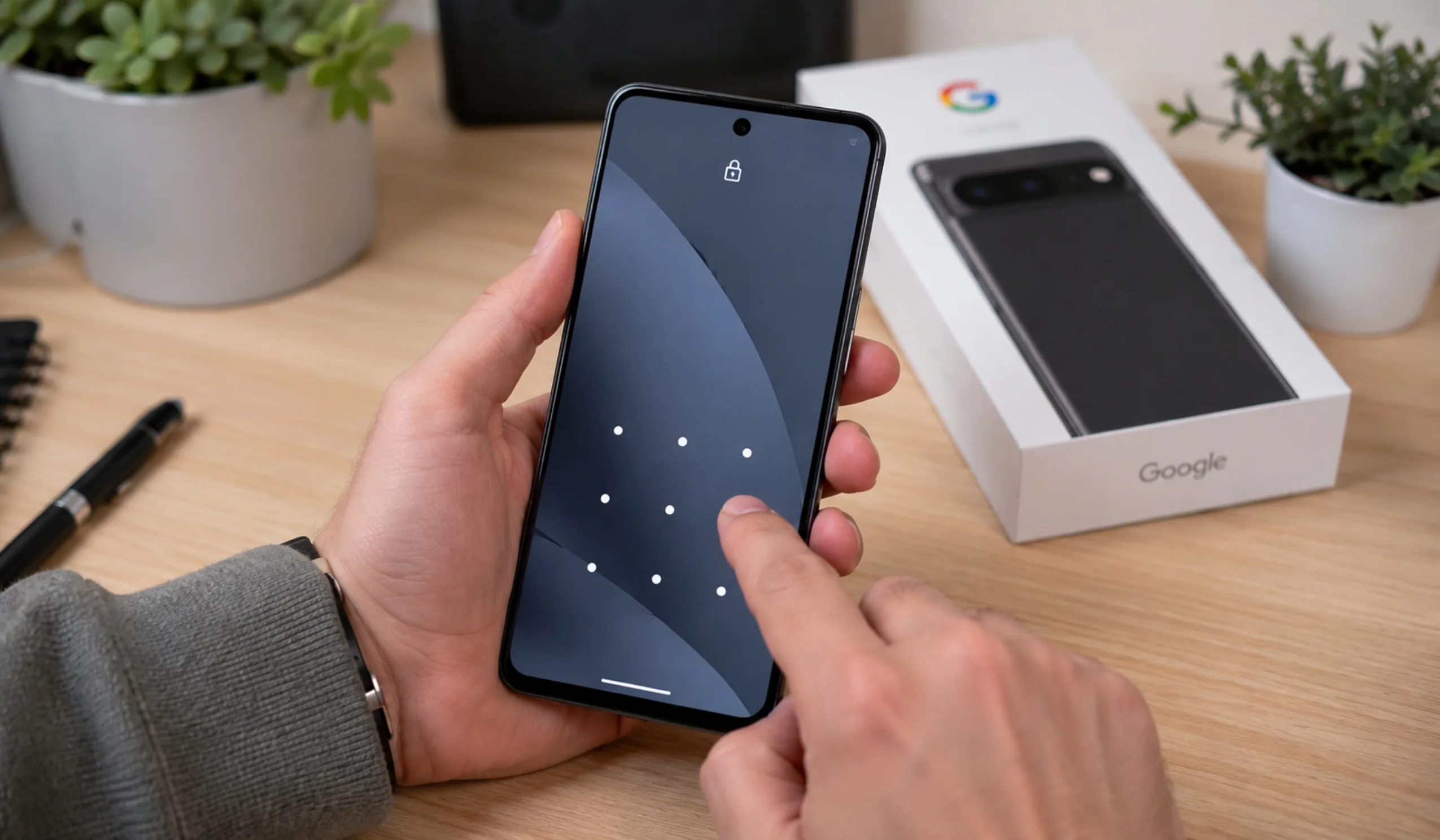
Getting locked out of a Google Pixel phone is a nightmare. Your photos, messages, and apps are trapped behind a PIN, password, or pattern you suddenly cannot remember. The good news? You can get back in. The truth? It depends on what you set up before you forgot your code.
This guide breaks down every real method to unlock a Google Pixel. It covers ways to get in without losing data, explains when a factory reset is unavoidable, and shows exactly how to restore everything afterward. No fluff. No fake hacks. Just steps that actually work.
Key Takeaways
First Things First: Can You Unlock a Pixel Without Losing Data?
Here is the hard truth. Modern Google Pixel phones run on Android 15 and Android 16. Google removed the old “Forgot Pattern” bypass that used to let you unlock with a Google account password. On a Pixel, if you forget your screen lock and you did not set up a backup method, a factory reset is usually the only way back in.
But “factory reset” does not have to mean “permanent data loss.” If your photos, contacts, and app data are synced to Google One or Google Photos, you can wipe the phone and bring everything back. That is the real “without losing data” strategy for Pixel owners.
Let us walk through every option, from the easiest to the most thorough.
Method 1: Try an Alternative Unlock Method You Already Set Up
Before you panic, check if you have a backdoor you forgot about. This only works if you set it up before you got locked out.
Use Your Fingerprint
Most Google Pixel phones have a fingerprint scanner. On newer models like the Pixel 9 and Pixel 10, it sits under the display. On older models like the Pixel 5, it is on the back.
Try this:
- Wake up the phone.
- Place your registered finger on the sensor.
- Hold it for a second.
If it works, go to Settings > Security & privacy > Device unlock > Screen lock immediately. Change your PIN or password to something you will remember.
Use Face Unlock
If you have a Pixel 4, Pixel 8, Pixel 9, or Pixel 10 and you set up Face Unlock, hold the phone up to your face.
The front camera should scan your face and open the home screen. Once inside, change your lock screen code right away.
Use a Pattern
Did you set a pattern instead of a PIN? Try tracing it on the lock screen. Muscle memory sometimes kicks in when your brain forgets.
If any of these work, you are in luck. Change your lock method immediately so this does not happen again.
Method 2: Check If Smart Lock (Extend Unlock) Is Active
Smart Lock is a hidden gem on Android. It keeps your phone unlocked in specific “trusted” situations. If you turned this on earlier, your phone might already be open.
What Is Smart Lock?
Smart Lock, now called Extend Unlock on newer Android versions, lets your Pixel stay unlocked when:
- It is connected to a trusted Bluetooth device (like your watch or car).
- You are at a trusted location (like your home).
- The phone detects it is on your body.
How to Check If It Is Working
If your Pixel is connected to your smartwatch or Bluetooth earbuds, try pressing the power button. The lock screen might skip the PIN request entirely.
If you are at home and you set your house as a trusted place, the phone may also unlock automatically.
Important: This only helps if you set it up before you forgot your password. If you did not, skip to the next section.
Method 3: The Honest Reset — When You Must Wipe the Phone
If none of the above methods work, you must perform a factory reset. There is no secret code, no hidden menu, and no third-party tool that can bypass a Pixel lock screen without wiping the device. Google built the security this way on purpose.
The goal now shifts from “avoiding a reset” to “recovering your data after the reset.”
Here are three ways to factory reset a locked Google Pixel.
Option A: Reset Using Google Find Hub (Find My Device)
This is the easiest method if your phone is connected to Wi-Fi or mobile data.
Step 1: On a computer or another phone, open a browser.
Step 2: Go to the Google Find Hub website.
Step 3: Sign in with the same Google account that is on your locked Pixel.
Step 4: Select your Pixel from the device list at the top.
Step 5: Click Factory reset device.
Step 6: Confirm by clicking Factory reset device again.
The reset happens remotely. Your phone will erase itself and restart. When it turns back on, it will be like a brand-new phone. You will need to sign in with your Google account again to get past Factory Reset Protection (FRP).
Option B: Reset Using Recovery Mode
If your phone has no internet connection, use the built-in Recovery Mode. You do not need a computer for this.
Step 1: Power off your Pixel completely.
Step 2: Press and hold the Power button and the Volume Down button at the same time.
Step 3: Keep holding until you see the Fastboot screen (a menu with a small Android robot).
Step 4: Use the Volume Down button to scroll to Recovery Mode.
Step 5: Press the Power button to select it.
Step 6: When you see the “No command” screen, press and hold Power, then tap Volume Up once, and release both buttons.
Step 7: You are now in Recovery Mode. Use the volume buttons to scroll to Wipe data/factory reset.
Step 8: Press the Power button to select it.
Step 9: Scroll down to Factory data reset and confirm.
Step 10: When it finishes, select Reboot system now.
Your Pixel will restart. It will take a few minutes. After that, set it up like new.
Option C: Reset Using the Pixel Repair Tool
Google offers an official Pixel Repair Tool for your computer. It updates your phone and resets it at the same time. This is useful if you also want the latest Android version installed.
Step 1: On your PC, visit the official Pixel Repair Tool website.
Step 2: Click Get Started.
Step 3: Power off your Pixel.
Step 4: Press and hold Power and Volume Down until the phone enters Fastboot mode.
Step 5: Use the volume buttons to select Rescue Mode. Press Power to confirm.
Step 6: Connect your Pixel to your PC with a USB cable.
Step 7: On the website, click Connect phone.
Step 8: Select Factory reset and reinstall.
Step 9: Click Confirm and wait.
Do not unplug the phone until the process is 100% complete. This method is slower, but it leaves your Pixel with a fresh, up-to-date version of Android.
Use ADB Commands for Advanced Users
This method is not for everyone. It requires a computer, a USB cable, and some technical comfort. Most importantly, it requires USB Debugging to have been turned on before the lockout happened. If a user never enabled Developer Options, this method will not work.
ADB stands for Android Debug Bridge. It is a tool that lets a computer talk to an Android phone. A user must first install ADB on their Windows, Mac, or Linux computer. They can download the official Android Platform Tools from Google’s developer website.
Next, they connect the locked Pixel to the computer with a USB cable. They open a command prompt or terminal window. They type adb devices to see if the phone is connected. If the phone shows up, they can try specific commands.
The commands remove the files that store the lock screen PIN or pattern. Common commands include removing gesture.key and password.key files. After running the commands, the user reboots the phone. If successful, the lock screen disappears without any data loss.
However, there is a big warning here. Modern Google Pixel phones use strong encryption. The PIN often helps protect the encryption keys. Removing the lock file does not always decrypt the data. On newer Pixels with the latest Android versions, this method may fail completely. It is also possible to make things worse with wrong commands. A user should only try this if they are comfortable with technology and have no other choice.
How to Get Your Data Back After the Reset
This is where the “without losing data” part really happens. If you have been using Google’s built-in backup tools, your data is not gone. It is just waiting in the cloud.
Restore from Google One Backup
Most Pixel owners have Google One backup turned on by default. During setup after the reset, your phone will ask if you want to restore from a backup.
Step 1: When you see the “Copy apps and data” screen, tap Next.
Step 2: Choose the backup from your Google account.
Step 3: Select which apps and data you want to restore.
Step 4: Wait for the restore to finish. This may take 30 minutes or more depending on your internet speed.
Your text messages, call history, app settings, and Wi-Fi passwords should return automatically.
Get Your Photos and Videos Back
If you had Google Photos backup enabled, every picture and video is safe.
Step 1: Open the Google Photos app on your reset Pixel.
Step 2: Sign in with your Google account.
Step 3: Your photos will appear in the cloud. You can view them instantly or download them to your device.
Tip: If you were not backing up photos, check if they were saved to another cloud service like Dropbox or OneDrive.
Restore Contacts and Calendar
Google syncs contacts and calendar events automatically. As soon as you sign into your Google account on the reset phone, your contacts and calendar should reappear within minutes.
To double-check:
- Open the Contacts app.
- Open the Calendar app.
- Make sure you are signed into the correct Google account.
What If You Did Not Have a Backup?
This is the situation everyone fears. If you did not enable Google One backup, Google Photos sync, or any other cloud service, a factory reset will erase your local data permanently.
There are no reliable third-party tools that can recover data from a locked Pixel without a backup. Be very wary of any software that claims it can. Most of these programs are scams or will simply wipe your phone anyway.
Your best remaining option is to contact a professional data recovery service. Success is not guaranteed, and it can be expensive. This is why prevention matters so much.
Prevention: How to Never Lose Your Data Again
Now that you are back in, let us make sure this never happens again. Set up these safety nets today.
Turn On Google One Backup
Step 1: Open Settings.
Step 2: Tap Google.
Step 3: Tap Backup.
Step 4: Turn on Backup by Google One.
Step 5: Tap Back up now to create your first backup.
This saves your apps, SMS messages, device settings, and call history to the cloud.
Enable Google Photos Backup
Step 1: Open the Google Photos app.
Step 2: Tap your profile picture at the top right.
Step 3: Tap Photos settings.
Step 4: Tap Backup.
Step 5: Turn on Backup.
Choose Storage saver or Original quality based on your cloud storage plan.
Set Up Multiple Unlock Methods
Do not rely on just a PIN.
Step 1: Go to Settings > Security & privacy > Device unlock.
Step 2: Add your fingerprint.
Step 3: Set up Face Unlock if your Pixel supports it.
Step 4: Consider keeping a pattern as a secondary option.
Set Up Smart Lock (Extend Unlock)
This can save you from future lockouts.
Step 1: Go to Settings > Security & privacy > More security & privacy > Extend Unlock.
Step 2: If you do not see it, go to Trust agents and enable Extend Unlock.
Step 3: Choose Trusted devices and add your smartwatch or earbuds.
Step 4: Or choose Trusted places and add your home.
Remember: Smart Lock is a convenience feature, not a high-security one. Use it wisely.
Pick a PIN You Will Actually Remember
A forgotten PIN is the most common cause of lockouts. Do not pick a random number.
Instead, use a combination that means something to you but is hard for others to guess. For example, mix the last two digits of your birth year with the first two digits of a favorite year. Write it down and store it in a safe or a password manager as a last resort.
The Bottom Line
Getting locked out of a Google Pixel is stressful, but it is not the end of the world. The key is to act smart, not desperate.
If you have a fingerprint, face unlock, or Smart Lock set up, try those first. If not, accept that a factory reset is your path forward. Then, use your Google One backup and Google Photos to bring your digital life back to your phone.
The real win is prevention. Turn on backups today. Set up multiple unlock methods. Use Smart Lock if it fits your lifestyle. A few minutes of setup now can save you hours of panic later.
Your data is valuable. Protect it before you need to rescue it.
Frequently Asked Questions
No. On modern Pixel phones running Android 15 or 16, Google removed the old “Forgot Pattern” bypass. If you did not set up fingerprint, Face Unlock, or Smart Lock beforehand, a factory reset is the only way back in.
Only from the phone itself. If you had Google Photos and Google One backup turned on, your data is safe in the cloud. You can restore everything during the setup process after the reset.
FRP is a security lock that activates after a reset. It requires the Google account password that was previously on the device. Make sure you know this password before resetting, or you will still be locked out of the phone.
Yes, but only if you set it up before you got locked out. If your Pixel is connected to a trusted Bluetooth device or you are at a trusted location, it may skip the PIN request entirely.
No. Most third-party unlocking tools do not support data-preserving unlocks for Google Pixel phones. They will either fail or factory reset your device anyway. Stick to official Google methods.
Turn on Google One backup, enable Google Photos sync, register your fingerprint and Face Unlock, and set up Smart Lock with a trusted device. Also, pick a PIN you will actually remember.